Checking configurations before assessment
Before beginning a security assessment, XBOW runs a configuration check to validate that your environment is ready for testing. This preflight phase will take several minutes, but it reduces your chances of waiting until the end of the assessment to find incomplete or inaccurate results.
Note: A successful configuration check is a good sign, but XBOW does not stop checking there. It re-checks authentication, target reachability, and site health throughout the run, so if conditions change it pauses and tells you what to fix rather than failing silently or returning misleading results.
What happens during checking
XBOW checks that it can:
- Connect to the target URL
- Authenticate with the target
- Create concurrent sessions
- Discover domains to test
You cannot start an assessment until all the checks pass.
In addition, you may see a warning if XBOW requests are blocked by a web application firewall (WAF) on the target server. See Detecting web application firewalls.
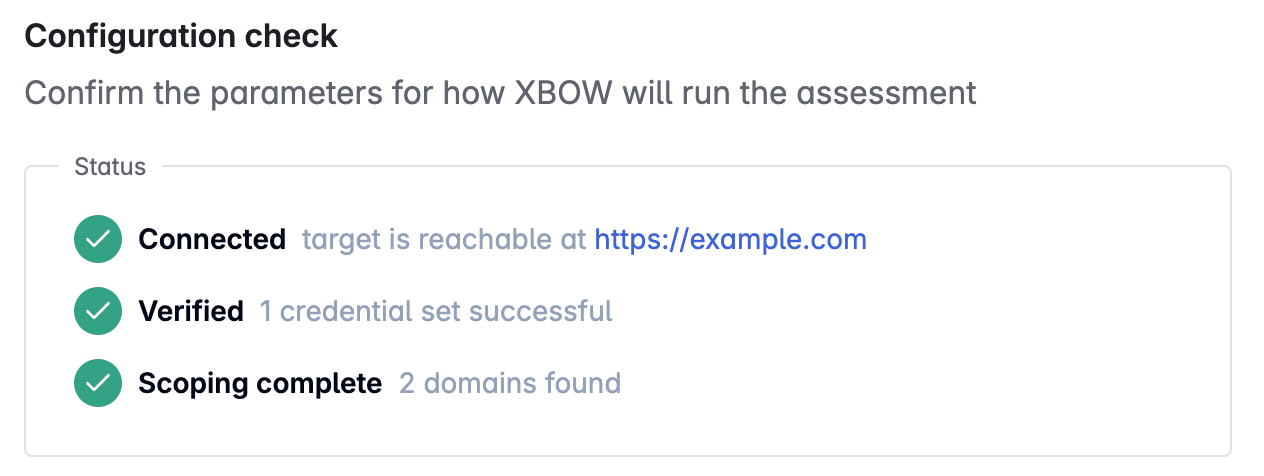
When a check fails, a card under the failed check explains the cause and the fix. Amber marks a problem with your target or authentication setup. Red marks a failure on the XBOW side.
The checks build on each other. If the target check fails, XBOW cannot test credentials or discover domains. Fix the target problem first, then retry the checks.
Connecting to the target URL
XBOW tries to confirm that the target is accessible and responsive.
If this check fails, verify that:
- The target is running and deployed at the expected URL.
- Network connectivity is not blocked by a firewall.
- The target is not timing out or returning errors.
Authenticating with the target
XBOW attempts to authenticate using the credentials or other details you provided to ensure that it can log in and access the target.
If this check fails, XBOW shows the failure reason with a Show logs button. Click Show logs to open a trace view of the agent’s actions and screenshots leading up to the failure. Check the reason and trace before verifying that:
- The credentials match your target’s test account.
- The test account has not been disabled or expired.
- The test account has sufficient permissions to access the target.
- The CAPTCHA process is turned off for the test account.
Creating concurrent sessions
After authenticating successfully with the target, XBOW checks whether the server supports multiple concurrent sessions for the test account. If this check fails, you are prompted to enable sequential testing. Sequential testing is slower, but required by some servers.
This test is omitted when you enable “Sequential mode” as part of the “Execution options” in the configuration for the target.
Discovering domains to test
XBOW explores your target to find the domains and endpoints it uses, including third-party services and APIs. It uses what it finds to propose the scope of your assessment.
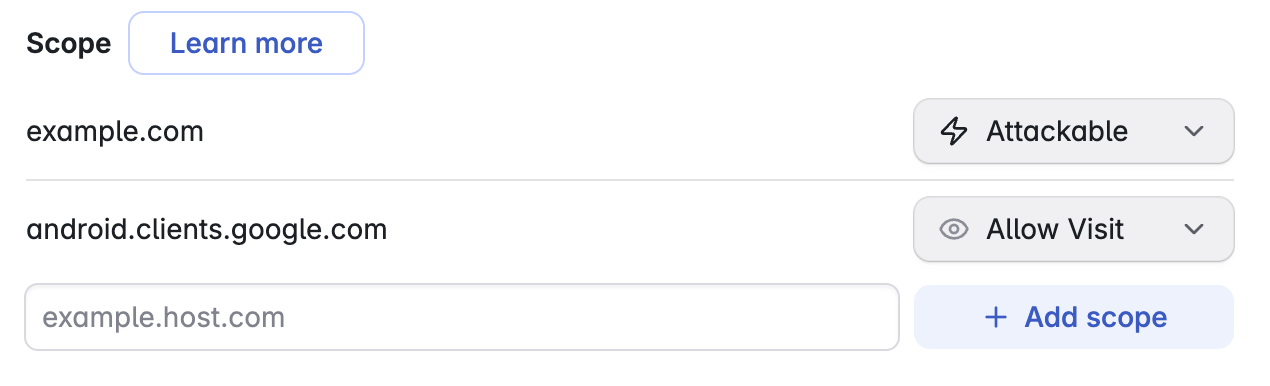
All domains discovered are displayed in a “Scope” area below the check status. The target domain is marked Attackable. Other domains XBOW discovers, including subdomains of your target and third-party sites, are marked Allow Visit. To test subdomains, add a wildcard rule such as *.example.com in the “Scope” area.
XBOW tests only the domains marked as “Attackable” and will visit any sites marked as “Allow Visit” without attacking them. You decide the final scope: change the setting for each domain or add missing domains.
During the assessment, XBOW continues to discover endpoints on the domains marked as “Attackable”, unless you limit testing to a list of endpoints. You can also block access to specific endpoints within a domain. For more information, see Attack surface and Protected URLs.
Allowing XBOW to visit third-party sites your target relies on is critical to the success of your assessment. For more information see, Run assessment and Scope configuration.
Detecting web application firewalls
During the configuration check, XBOW also sends a small set of probes to detect a web application firewall (WAF) that could block testing traffic. This is in addition to the authentication check above, which only catches protections that block login.
If XBOW detects blocking, the “Configuration check” page shows a “WAF blocking detected” warning, listing what it found and the evidence for each blocked probe. This is a warning, not a failed check, so you can still start the assessment, but testing is likely to fail partway through and pause the assessment.
A WAF can also block XBOW’s first request to the target. In that case, the card under the target check lists the IP addresses to allow.
To get the most from your assessment, configure the server to accept XBOW’s traffic before you start. See Protecting assets during XBOW testing and Configure your server to allow XBOW requests.