Generate and download reports
Reports are downloadable PDFs that summarize the findings from one or more assessments. XBOW generates a report automatically when an assessment succeeds, and you can also generate reports yourself.
For the contents of each report format, see Reports.
Changes to automatically generated reports
Automatically generated reports are now scoped to a single assessment, not your asset as a whole. For more information, see Automatically generated reports.
If you want a report that covers the whole asset, as the automatic report did before, generate a report with the scope All completed assessments. See Generate reports.
Generate reports
When an assessment succeeds, XBOW automatically generates a report with the same name as the assessment. To instead see information on a group of assessments, you can scope and generate a report yourself.
- On the asset page, click Reports, then click Generate report.
- In Report name, enter a name for the report. If you include all completed assessments in the scope, you can leave the name blank and XBOW uses the asset name.
- Under Scope, choose which assessments to include:
- Most recent completed assessment
- All completed assessments
- Combine multiple assessments: select each assessment to include.
- Check the scope in the Review panel, then click Generate report.
Console shows the new report with the status Generating. When the status changes to Ready, you can download it. If a report for that scope is already generating, you will see a warning.
You can also generate reports using the API. See Generate report in the API reference.
For more information about scope and what a report shows for each finding, see Reports.
Download reports
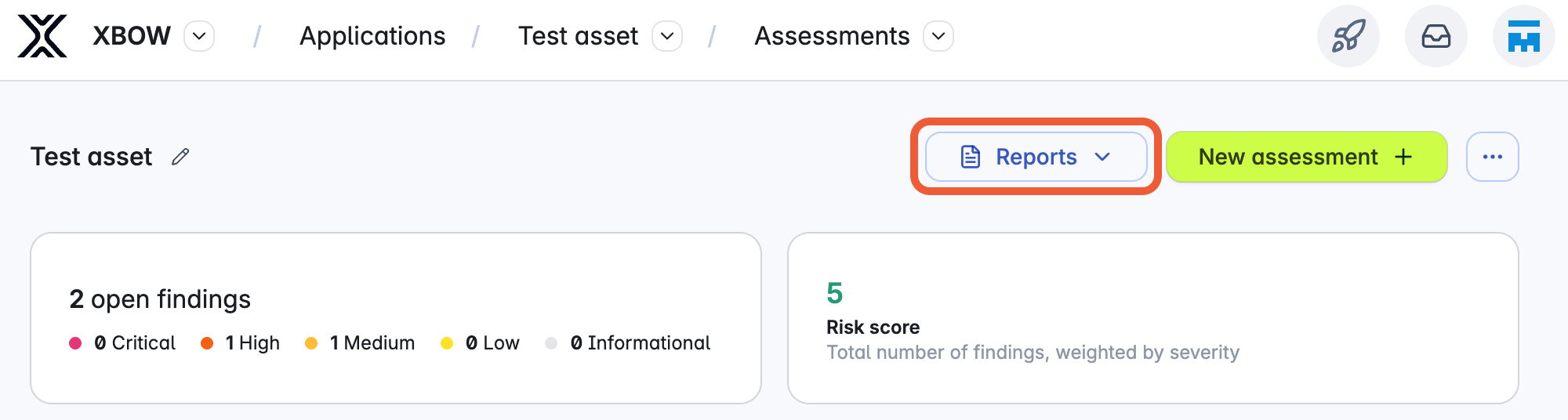
- On the asset page, click Reports. To see the reports for every asset, click View all reports, or click Reports in the sidebar.
- Choose the report to download, then click Penetration testing report, Executive summary, or Letter of attestation to immediately download your document.
The executive summary and letter of attestation are reduced versions of the full report that omit detailed information about any vulnerabilities or exploits found. For more information, see Reports.