Manage XBOW users directly
- Enterprise only
Add people to your XBOW organization by sending email invitations, and remove users who should no longer have access. Alternatively, you can use single sign-on. See Set up single sign-on authentication.
Prerequisites
You must have the Administrator or Existing Asset Administrator role in your organization.
Invite users to join
You add people to your XBOW organization by sending them an email invitation. The invitation includes a link that they can use to log in to XBOW.
-
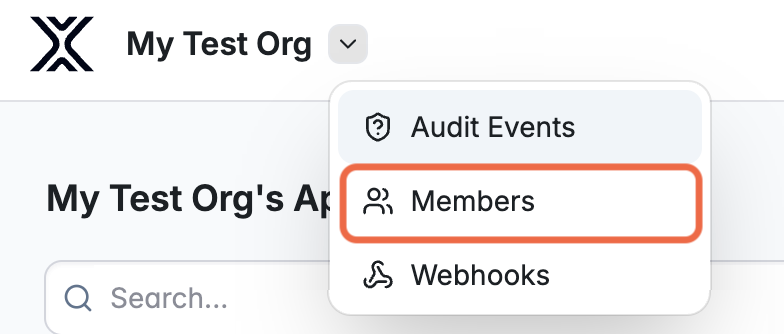
Open the administration menu and select Members.
-
Click Invite to open the “Invite Member” dialog box.
-
Enter the user’s email address.
-
Select the role to assign to the new user. See User roles.
The new user is displayed in the list of members immediately.
Remove a user
When you remove a user, their access to data for your organization is blocked. They can still log into XBOW Console, but cannot access your organization.
- Open the administration menu and select Members.
- In the list of members, select the user you want to remove.
- In the “Edit Member” dialog box, click Remove.
The user immediately loses access to your organization through the user interface, the API (they will receive a 401 response), and the Microsoft integration. Their account is not deleted, and any content they created (for example, assessments or uploaded files) remains intact and attributed to them.