Install the XBOW Pentest Analysis agent
- Enterprise only
- Public preview
After you set up the XBOW Sentinel Connector, pentesting results from XBOW analysis are included in three XBOW tables in your Log Analytics workspace.
You can query pentesting results directly by writing Kusto queries (KQL), or you can install the XBOW Pentest Analysis agent to provide Security Copilot with skills to report insights from this data.
Note: The analysis agent can only report on pentesting data if you have installed the XBOW Sentinel Connector. The XBOW tables must also contain results from pentesting, run either from the XBOW Console or from Microsoft Security Copilot.
Prerequisites
- Microsoft Security Copilot
- Microsoft Sentinel
- Access to install an agent in your resource group
- Data in
XbowFindings_CL,XbowAssessments_CL, andXbowAssets_CLin your Log Analytics workspace
Install agent for Security Copilot
-
Locate the XBOW Pentest Analysis Agent in Microsoft’s Security Store: https://securitystore.microsoft.com/solutions/xbowinc.xbow-pentest-analysis-agent.
-
Review the details and then click Get agent to install the agent.
-
On the “Purchase” page, define:
- Billing subscription. Requests to the agent will consume Security Compute Units (SCU) in this subscription.
- Resource group. The agent will have access only to data in this environment. This must match the resource group where you installed the XBOW Sentinel Connector.
- Resource name. A name or identifier for the agent.
-
Click Next until you reach the “Review” page.
-
Check the details carefully then click Place order to install the agent.
Set up the agent
-
Display the agent in Microsoft Security Copilot.
-
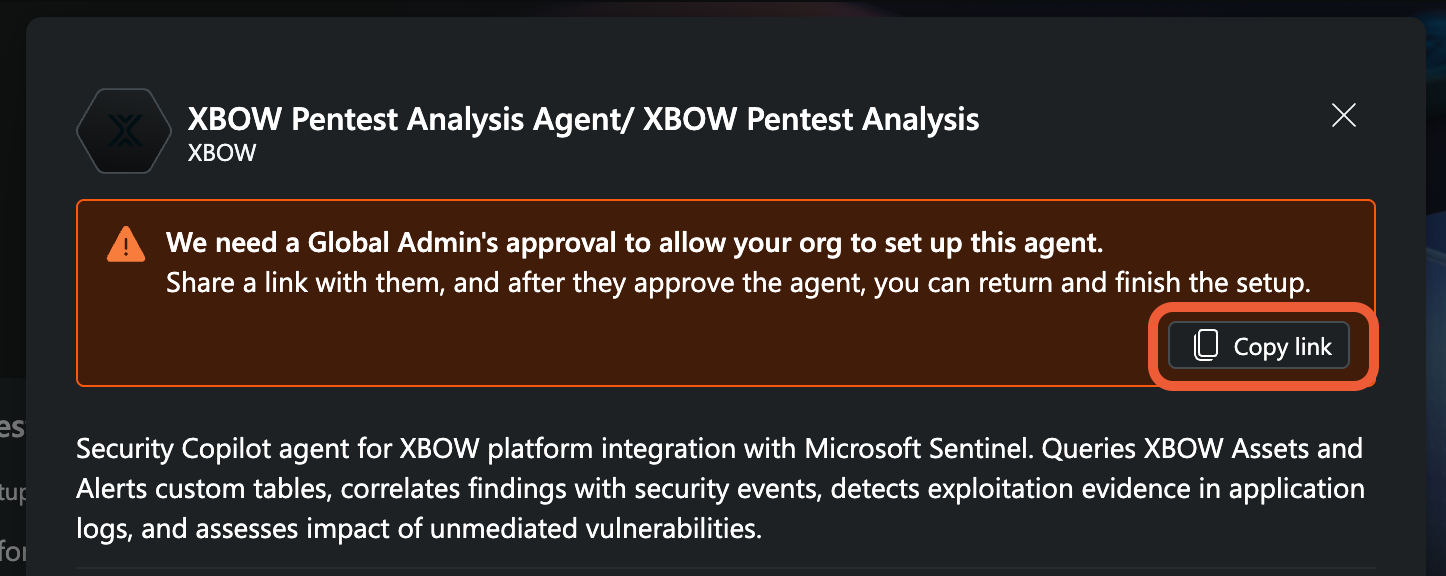
Click Set up to show the agent description. This is not a Microsoft agent, so you will see a warning dialog informing you that “Global admin’s approval” is needed to set up the agent.
-
If you have permission to approve the agent, click the Start approval button. Review the permissions needed by the agent and click Approve. Otherwise, copy the link to the agent and ask your global administrator to approve the agent for the organization.
-
When the agent has been approved, you can continue and set up the agent.
-
Decide which Microsoft account the agent should use and authenticate with that account. The agent will inherit permissions from the chosen account.
-
Click Next to finish setup.
-
Click Go to agent to display the agent.
Verify that the agent is working
The simplest way to test that everything is correctly set up is to ask Security Copilot a question about XBOW alerts.
For example, go to Microsoft Security Copilot and ask:
How many XBOW alerts are there?The response will vary according to the status of the agent and whether alerts have been opened for XBOW pentesting findings.
- Responds by creating a custom KQL query: Security Copilot did not find the XBOW analysis agent. Check that the agent is configured correctly.
- Responds without creating a KQL query: The XBOW analysis agent is correctly configured.
Note: If you have not set up the data connector or have not run any assessments yet, then you will see a response like: There are no XBOW alerts currently detected.