Provide XBOW with context to guide testing
You can optionally upload artifacts to give XBOW more context about how your application is built. This information is used to guide testing either generally or focused on a specific part of the test process.
Tip: If you retest the application or run a new assessment, any context you added to the configuration is reused.
Upload source code and documentation (all users)
You can upload source code and documentation files to provide the whole test process with additional information about your application. For guidance on format and what to include, see Artifacts supported to guide testing.
- On the “Target configuration” page, locate the “Source code” area (Enterprise) or “Source code and documentation” area (Lightspeed).
- Click Click to upload to open the File library manager.
- Drag and drop files on the drop zone, or click Upload files to use a file selection dialog.
- Select any files you want to add to the configuration of the assessment.
- Close the file library manager.
Define a brief for the assessment (Enterprise users only)
For detailed information, see Guiding XBOW testing for experts.
Add guidance to the configuration
The workflow for adding guidance to the Attack surface, Priorities, and Attack strategy cards is similar. Some cards have additional options. These are described in the relevant sections. The Validation card does not use the file library.
-
Click the card to open a dialog. There are two columns:
- Left column has access to the file library for the application and a free-form text box.
- Right column shows what will be added to the configuration when you save your changes.
-
Click Select files to analyze to display the file library manager.
- Upload any new files you want to add to the library.
- Select any files you want to analyze to provide guidance for this assessment.
- Close the file library manager.
-
Optionally, add any content to the free-form field.
-
Click Analyze to process any included files or free-form text.
The information you provided is analyzed for context that is relevant for the current card and also for assessment-level guidance. All the relevant information identified is shown in the column on the right.
-
Review the extracted information. The right column can show three types of items:
- The card-specific output (endpoints, priorities, strategies, or canary).
- General guidance: Context that is relevant throughout testing.
- Safety guidance: Actions to avoid or treat with caution.
-
Delete anything you do not want to add to the configuration of the assessment.
-
Click Save to save the context to the configuration.
If you saved context that included general or safety guidance, this is shown in a dedicated card below the main four cards.
Review general and safety guidance
If you added context with general guidance or safety guidance, this is shown in two aggregated views. Review these lists before starting the assessment:
- General guidance items are passed to every attack agent and shape the whole assessment.
- Safety guidance items are passed to the safety-checker agent to decide whether to allow an action. The extractor can be over-cautious. Delete any items that would unnecessarily restrict testing.
When you delete an item from the aggregated view, the item is also removed from the assessment configuration.
Use the file library
Each file that you upload to XBOW is stored in a file library that is shared by your organization. When anyone in your organization runs an assessment, they can choose to provide context from library files or newly uploaded files.
-
Open the file library: Under “Assessment guidance”, select Attack surface, Priorities, or Attack strategy. Then click Select files to analyze to open the “File library manager” dialog.
-
Add new files to the library: Open the “File library manager” dialog and add new files. These will be available to all users in your organization.
-
Provide an assessment with information: Open the “File library manager” dialog, locate the file to add, and select the associated checkbox.
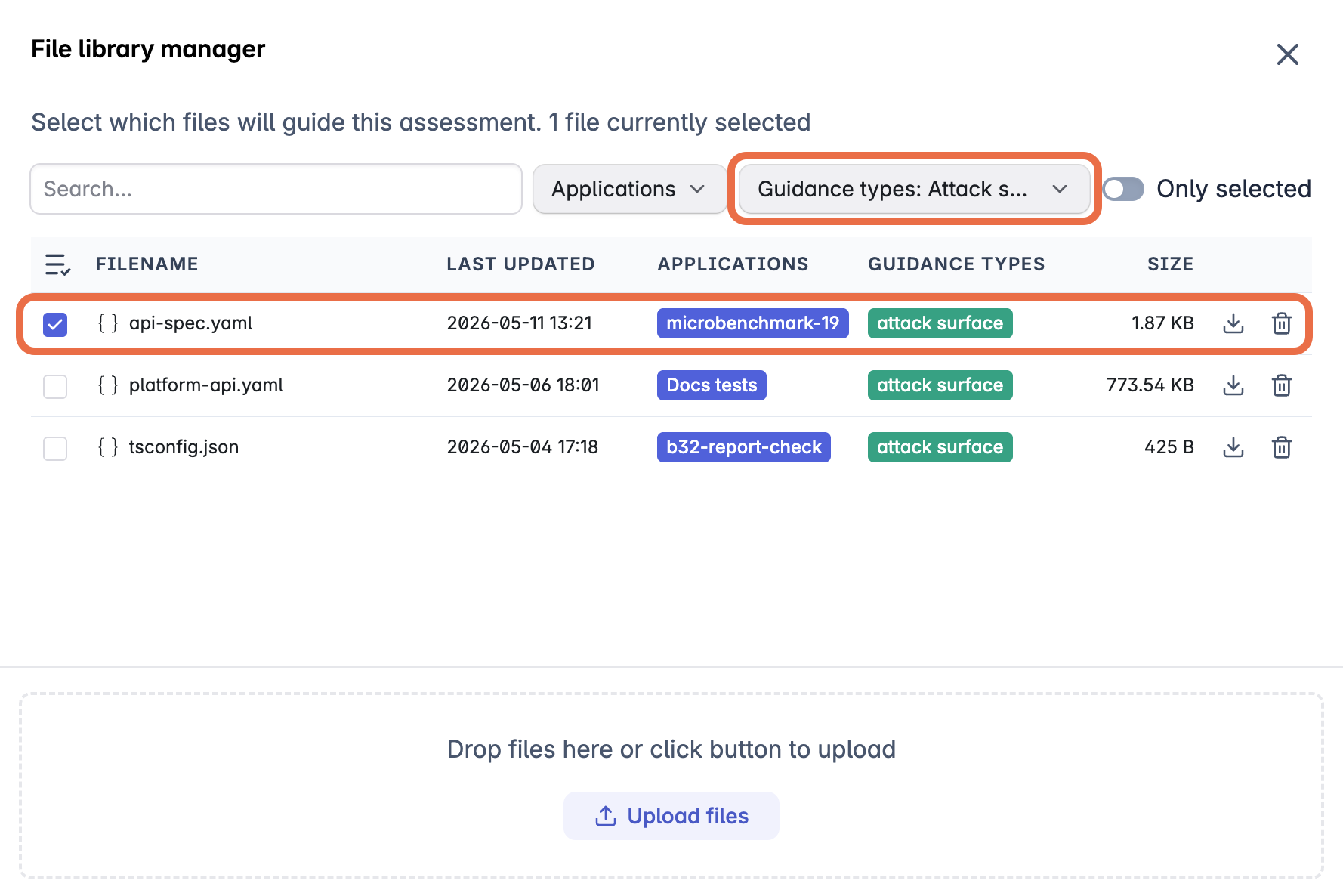
In this example, the user has filtered the file library to show only files uploaded in the “Attack surface” card and selected the
api-spec.yamlfile to define endpoints for the assessment.
Attack surface
- Allow the assessment to discover endpoints by running AI agents. Skip this card.
- Provide detailed information for all endpoints by including the API specification. The specification provides the requirements for each endpoint, so less experimentation is needed to design attack payloads, saving time and attack credits.
- Ensure key endpoints are attacked by including a list of endpoints. By default, the assessment will run AI agents to discover additional endpoints to attack.
- Restrict assessment to named endpoints by including a list of endpoints and enabling the Limit testing to the listed endpoints option.
When the “Endpoints” column has the data you want to add to the configuration for this assessment, click Save to save your changes.
Priorities
- Attack all endpoints and features equally. Skip this card.
- Focus attacks on specific features by providing guidance in the free-form field or by including a specification.
- Reduce attacks on partially implemented features by providing guidance in the free-form field or including a file that defines out-of-scope areas of the application.
When the “Assessment priorities” column has the data you want to add to the configuration for this assessment, click Save to save your changes.
Attack strategy
Information you add in this card is used to plan how agents should attack endpoints.
Configure the attack types to run
- Run a comprehensive test of all attack types by keeping the default selection of “Threat vectors”.
- Focus the assessment on a subset of attack types by expanding “Threat vectors” and clearing selection from some of the types.
- Enable attacks that require additional configuration or that are in preview by expanding “Threat vectors” and enabling additional types.
When you have selected the attack types for this assessment, click Save to apply your changes.
If you run fewer attack types and use the same number of attack credits, the assessment provides more focused, in-depth testing of the selected vulnerability categories. Conversely, if you run more attack types without increasing the number of attack credits available to use, the assessment will be shallower.
Provide information to guide testing
- Use knowledge from previous tests as a starting point for new attacks by including a security report.
- Provide hints for specific types of attack with a plain-text description of how XBOW should approach the attack on your application. For example, if you know the application is exposed to SQL injection from a specific route, you can describe it here.
- Define preconditions required by specific endpoints, that is, what conditions must be met before attacking a specific endpoint, for example: authentication state, required parameters, or setup steps.
- If you enabled IDOR testing, you can provide information about how the application is structured to protect data associated with individual user accounts.
When the “Strategies” column has the data you want to add to the configuration for this assessment, click Save to save your changes.
Validation
Create and hide a canary token. If XBOW is able to retrieve the token, this provides evidence that an attack was successful. This approach is useful for many vulnerabilities but essential for proving the existence of vulnerabilities in business logic.
Defining a canary token
Canary tokens are secrets or markers that you hide inside the application. You add them to a location that should not be accessible with the test account you created for XBOW testing. If XBOW retrieves a canary token during an assessment, it becomes a verified exploit with no ambiguity. For details, see Validate results with canary tokens.