Manage assets
- Enterprise only
The organization dashboard lists up to 10 of your applications (assets).
- Assets shown in pale gray text have partly completed configurations or assessments. Click the action button in the row (for example, Start assessment or Finish setup) to continue setup.
- Assets shown in black have at least one successful assessment. Click the asset name to open the results summary, or click the action button in the row to take the recommended next step.
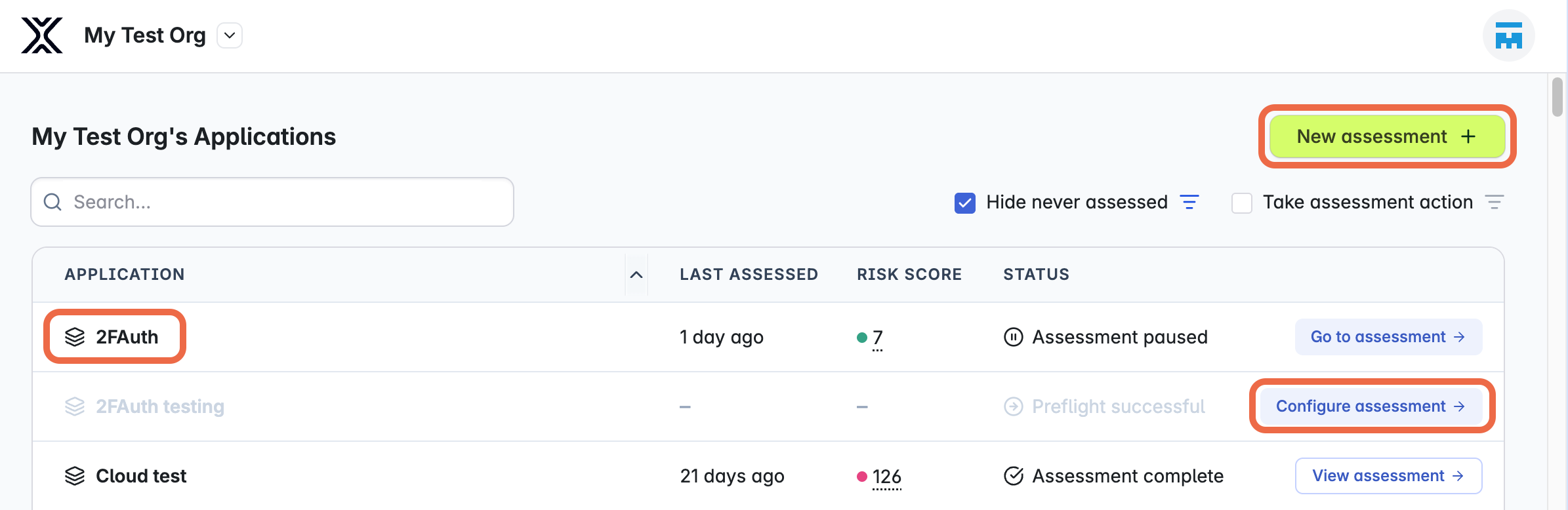
If your organization has more than 10 assets, you can view and filter them from the “Applications” page. See View and filter your assets at scale.
Add or edit assets
The following actions require the Administrator role.
- Add a new asset by clicking the New assessment button and then choosing New application.
- Rename an asset by opening an asset from the list and clicking the
 icon associated with the name.
Delete an asset
Deleting an asset requires the Administrator role.
-
Open your asset from the organization dashboard or “Applications” page.
-
Optionally, before you delete your asset, download any reports you want to keep.
-
At the top of the page, select the three dots next to Go to configuration, then click Delete Application.
Note: To delete an asset that is actively being assessed, you need to stop the assessment.
-
Read the confirmation dialog, then type your asset name in the text box and click Delete Application. The asset and all related assessment data will immediately disappear from the Console.
If you delete an asset by mistake, you can contact XBOW to restore your data for up to 30 days. After 30 days, XBOW permanently deletes your asset and all related data.