Monitor assessment
- Public preview
You can monitor the progress of your assessment from the dashboard that’s shown when you click Start assessment.
If you closed the dashboard, you can reopen it from your asset page by clicking the assessment name in the “Assessment history” table.
Assessment states
When an assessment is in progress, there are three potential states:
Assessment running
The first step of an assessment is to spin up all the servers and agents needed. Once the test environment is ready, assessments start gently exploring the resilience of your application.
After the initial setup period, you will be able to see:
- Growing number of endpoints already assessed
- Current rate for test requests to the site
- When attack agents are running, insight into their behavior
- Any findings discovered so far
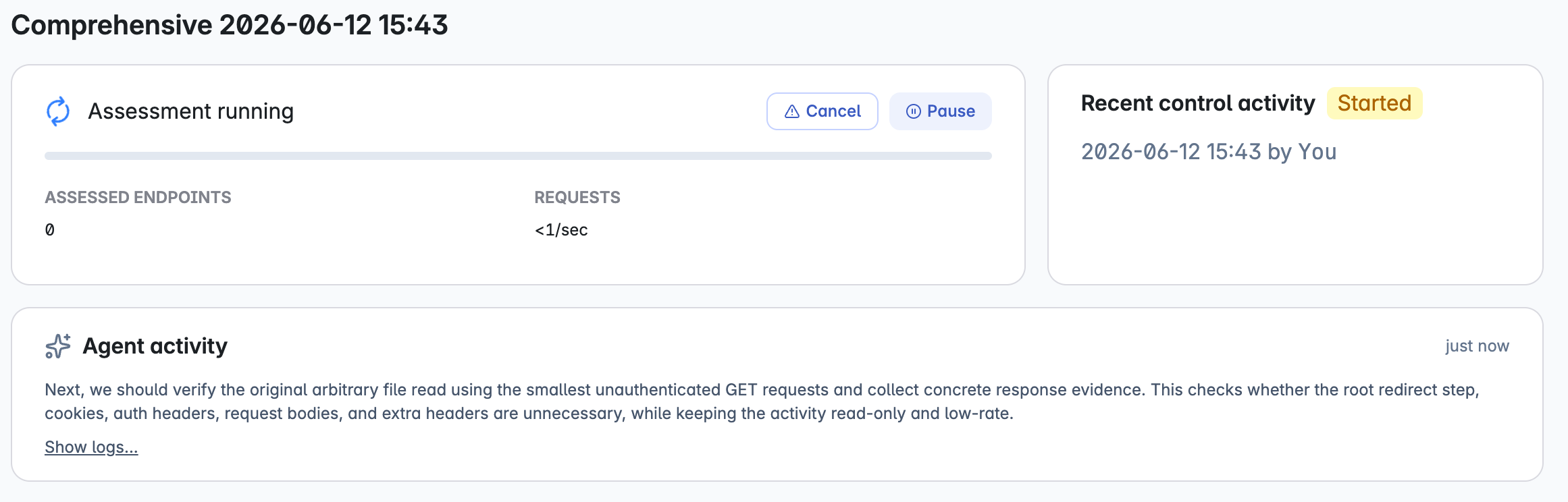
You can pause an assessment temporarily or cancel it completely using the buttons on this dashboard.
Note: Keep your testing environment stable while the assessment runs. Changes such as redeploying the application, rotating credentials or tokens, changing the test account password, or re-enabling MFA, CAPTCHA, or WAF rules can pause the assessment. XBOW pauses rather than continuing against a changed environment, so you do not get misleading results. See Troubleshooting assessments.
Monitoring
XBOW monitors your site’s health throughout the assessment and automatically throttles the attack rate, or waits, when your site starts to struggle. When only health checks are running, you will see the “Monitoring” status. No attack credits are used.
An assessment in this state can look stalled because the request rate drops and no attack agents are active. This is intentional: testing continues automatically when your site’s health improves.
If your site does not recover, the assessment is automatically paused. For more information, see Target health.
Assessment paused
Assessments are automatically paused when the site appears to be unhealthy, when it is difficult to reach, or when agents cannot authenticate. The assessment dashboard shows why the assessment was paused and actions you need to take before resuming the assessment.
In most cases, you need to check the state of the site and confirm that the test account is working correctly.
Enterprise users who want to set up alerts for paused assessments should use the assessment changed webhook. For more information, see Assessment changed and Audit log events.
Lightspeed users are alerted by email when an assessment is paused by XBOW. Follow the link in the email to see why testing paused and how to fix the problem before resuming the assessment.
No action required
When an assessment is paused by XBOW, you usually need to fix something and then manually resume the assessment. However, there are a few situations where an assessment can resume automatically. For example, if the configuration sets approved test windows, the assessment pauses outside test windows, then resumes automatically when the next test window opens.
Action required
When you view the assessment dashboard, you’ll see the reason that the assessment paused and suggestions of what needs to be fixed before you resume the assessment.
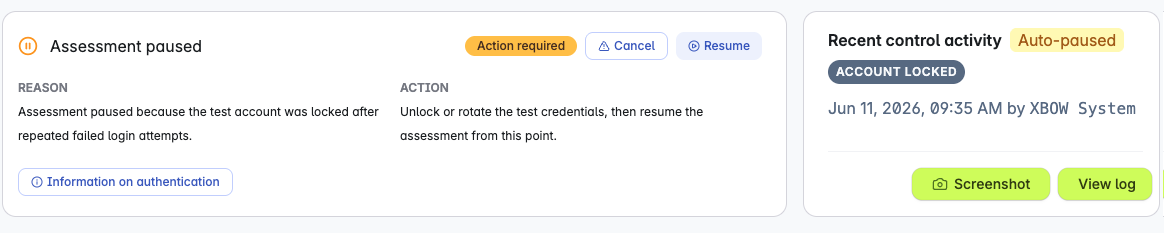
- If an “Evidence” section is shown, click View log to display the run data up to the pause moment.
- Fix the highlighted problem. If the assessment paused because the test credentials are wrong, expired, or were changed, click Edit credentials to update them in XBOW. See Edit credentials on a running assessment.
- Verify that the site or test account is working as expected.
- Click Resume to restart assessment.
For information about different pause types, see Troubleshooting assessments.
Note: Any assessment left in the “Paused” state for a week is automatically cancelled.
Successful completion
When the assessment is finished, its status will change from “Assessment running” to “Assessment succeeded” in the dashboard. Organization administrators are also alerted by email. This includes all Lightspeed users.