Provision users automatically
- Public preview
Configure XBOW to manage user provisioning and XBOW access for single sign-on (SSO) users.
Prerequisites
- SSO for XBOW configured and enforced. See Set up single sign-on authentication.
- An XBOW account with the Administrator or Existing Asset Administrator role.
Choose a user provisioning method
-
Open the XBOW administration menu and select SSO.
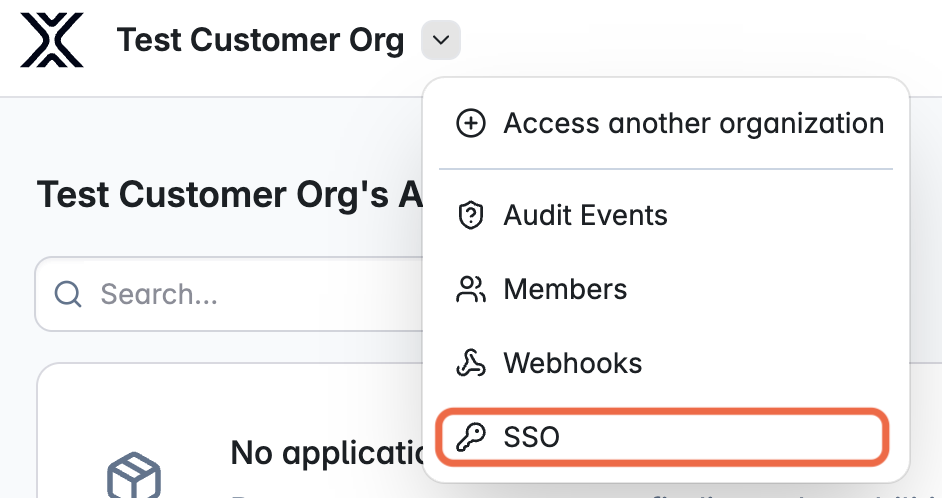
-
In the sidebar, click Provisioning to show the options.
-
Choose a provisioning method for users:
- JIT (Just in time): create users when they log in to XBOW for the first time using SSO.
- SCIM: synchronize users and groups from your IdP to XBOW, independently of login. Choose SCIM if you want to provision and deprovision users without waiting for them to sign in, or if your IdP already manages user lifecycles centrally.
Set up SCIM provisioning and mapping
If you choose SCIM provisioning for users, you need to synchronize users from your IdP to XBOW before you can map user groups to roles.
Provision users
- In the “Provisioning” section, copy the “SCIM Endpoint” URL from XBOW.
- In your IdP, open the SCIM provisioning settings for the XBOW application you created during SSO setup. Paste the URL into a “SCIM base URL” (or equivalent) field.
- In XBOW, define a token name then click Create token to generate a token for your IdP to use to access the XBOW SCIM endpoint.
- In the SCIM provisioning settings for the XBOW application, paste the new token into the “Bearer token” field (sometimes labeled “API token” or “Secret token”).
- Finish setting up SCIM in your IdP.
- Set your IdP to synchronize users with XBOW.
Map SCIM groups to XBOW roles
-
In the “Provisioning” section, a list of the user groups defined in your IdP is displayed.
If you see a message “No groups synced yet”, trigger synchronization to XBOW in your IdP.
-
Select each group in turn and assign it an XBOW role.
-
Optional. Define a Default role for users whose groups do not match any rule. If you omit a default role, users without a matching group cannot access the organization.
-
When you have finished assigning roles, click Save role mapping.
Set up JIT provisioning and mapping
If you choose JIT provisioning for users, you need to add the names of user groups to XBOW manually. Ensure that each group name matches the name your IdP will report when a user logs in using SSO.
- In the “Provisioning” section, add a rule mapping each IdP group that you want to provision to an XBOW role.
- Optional. Define a Default role for users whose groups do not match any rule.
- When you have finished assigning roles, click Save role mapping.
Note: If you do not define a default role, users without a matching group cannot access the organization. When they try to access Console with SSO, the behavior depends on the SSO configuration:
- OIDC connection: user is logged in but has no access to the organzation.
- SAML: the error
"No account found for this email address"is displayed.