Install the XBOW Pentest Manager Agent
- Enterprise only
- Public preview
The XBOW Pentest Manager Agent has no dependencies on the XBOW Pentest Analysis agent or the XBOW Sentinel Connector. You can install it as a standalone agent to run XBOW pentesting from within Microsoft Security Copilot using natural language prompts.
Prerequisites
- Microsoft Security Copilot
- Microsoft Sentinel
- Access to install an agent in your resource group
Install agent for Security Copilot
-
Locate the XBOW Pentest Manager Agent in Microsoft’s Security Store: https://securitystore.microsoft.com/solutions/xbowinc.xbow-pentest-manager-agent.
-
Review the details and then click Get agent to install the agent.
-
On the “Purchase” page, define:
- Billing subscription. Requests to the agent will consume Security Compute Units (SCU) in this subscription.
- Resource group. The agent will have access only to data in this environment. This must match the resource group where you installed the XBOW Sentinel Connector.
- Resource name. A name or identifier for the agent.
-
Click Next until you reach the “Review” page.
-
Check the details carefully then click Place order to install the agent.
Configure the XBOW source
Before you can use the agent, you need to give it access to your organization in XBOW.
Preparation
You need an XBOW enterprise user account with administrator access to generate an API token for the agent to use.
- Open XBOW Console at: https://console.xbow.com/, unless you have data residency.
- Copy your organization identifier (ID) from the browser URL. The URL has the form
https://console.xbow.com/v2/organizations/ORG-ID/assets. You will need this ID to chat with the agent. - Generate an XBOW API token, see Generate an API key in the API reference.
- Store the value of the token securely. It will not be displayed again.
Data to record:
- XBOW API token
- XBOW organization ID
Define the agent source
-
At the bottom of the home page, you will see a chat prompt for Security Copilot. Click the Sources icon in this prompt area.

-
Locate the XBOW Pentest Manager Agent, either by searching or by expanding the “Non-Microsoft” plugins, and click Set up.
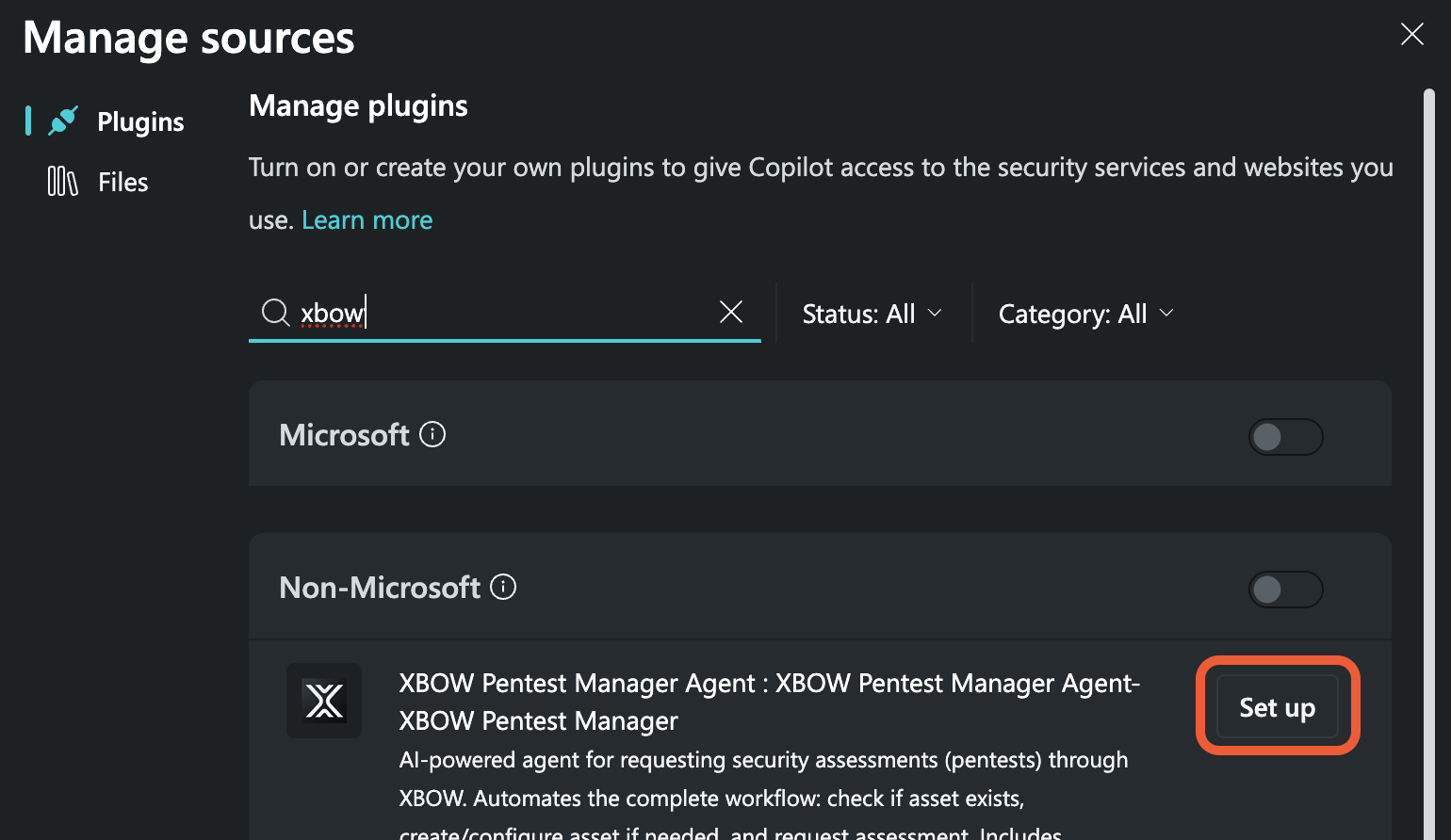
-
In the “Settings” box, copy your XBOW API token into the Value field and check that the XBOW Base URL is correct for your organization. Then Save the source settings.
Chat with the agent
The simplest way to test that everything is correctly set up is to ask Security Copilot to run one of the example prompts.
For example, go to Microsoft Security Copilot and ask:
List all assets in XBOW organization `XBOW-ORGANIZATION-ID`Security Copilot:
- Responds by creating a custom KQL query: Security Copilot did not find the XBOW manager agent and instead explored the tables of data in Defender. Check that the agent is configured correctly.
- Responds without creating a KQL query: The XBOW manager agent is correctly configured.
Note: If your organization has not run any assessments yet, then you will see a response like: There are no XBOW high alerts currently detected. Instead, try running a new analysis using the agent, see Run an assessment from Security Copilot.
Configure the agent for automation
If you want to trigger the agent automatically, you need to define your organization ID and a chat prompt for the agent.
- Display the agent in Microsoft Security Copilot.
- In the top right corner, click the ellipsis icon and select Edit to display the agent details.
- Click Set up to show the configuration pages.
- Click Edit parameters to define the parameters to use when the agent is triggered.
- Copy your XBOW organization identifier into the “Organization ID” field.
- Use the User Request field to define the prompt for the agent, and then click Finish.
The agent is now configured to run successfully without additional input from a user. Test the setup by clicking Run and selecting One time.