Work with multiple credential sets
An assessment can use up to five credential sets. Each set is a test account that XBOW authenticates with. Use more than one set to test whether accounts can reach each other’s data, or when your accounts authenticate in different ways.
Note: IDOR testing, per-credential authentication instructions, and adding credentials found in your documents are available as a public preview release.
How XBOW uses credential sets
- One primary set: XBOW performs discovery and all attack methods with the primary set. By default, the first set is the primary.
- Additional sets: XBOW uses the other sets to test access between accounts, known as Insecure Direct Object Reference (IDOR) testing. Any account can act as the attacker or the victim.
XBOW authenticates with each credential set separately, using the instructions you wrote for that set plus the shared instructions that apply to every set.
Add a credential set
Using more than one credential set enables IDOR testing. To understand the levels of privilege you should grant your credentials for effective testing, see Creating additional accounts for IDOR testing.
-
On the “Target configuration” page, define the first set. Enter a Role description to say what access the account has. For example: “Store manager with access to the admin panel and their own personal data”.
-
Click Add credential set for IDOR.
-
The first time you add a set, the “Test access between accounts” dialog appears. Read the guidance and click Enable IDOR testing. If you click Cancel, XBOW does not add the set.
-
Define the credentials and role for the new set. The account can have the same privilege level as the first set for horizontal testing, or a different level for vertical testing. Helpful role descriptions look like the following:
- “Another store manager with access to the admin panel and their own personal data (horizontal testing)”
- “Employee with access to stock control and their own personal data (vertical testing)”
-
Repeat for any other accounts, up to five sets in total. We recommend including at least one admin account to help XBOW identify user privileges and create resources for testing.
-
To change the primary set, select Perform discovery and non-IDOR attacks with this account on the set you want.
Under “Assessment guidance”, the “Attack strategy” card shows that a preview stage is enabled. In the card, the Public preview toggle is on because IDOR is a public preview attack method.
Write authentication instructions
Most accounts do not need authentication instructions. If authenticating is complex or unusual, you can describe the steps in two places:
- Authentication instructions in each credential set: Steps that apply only to that account. For example, an account that must choose a workspace after it logs in.
- Shared authentication instructions: Steps that apply to every account. This card is below the credential sets and is available after you enter valid credentials. The summary line shows whether instructions are present.
For how to write instructions, see Provide authentication instructions.
Important: Do not type usernames, passwords, or tokens into instructions or guidance. Enter them in the credential fields. If credentials already exist in your documents, XBOW can find them for you. See Add credentials found in your documents.
Add credentials found in your documents
If your documents or notes already contain credentials, XBOW can find them and suggest adding them to your assessment.
-
Under “Assessment guidance”, open a card that has an Analyze button, for example, Attack surface.
-
Upload the files that contain the credentials. For more information, see Add guidance to the configuration.
-
Click Analyze.
-
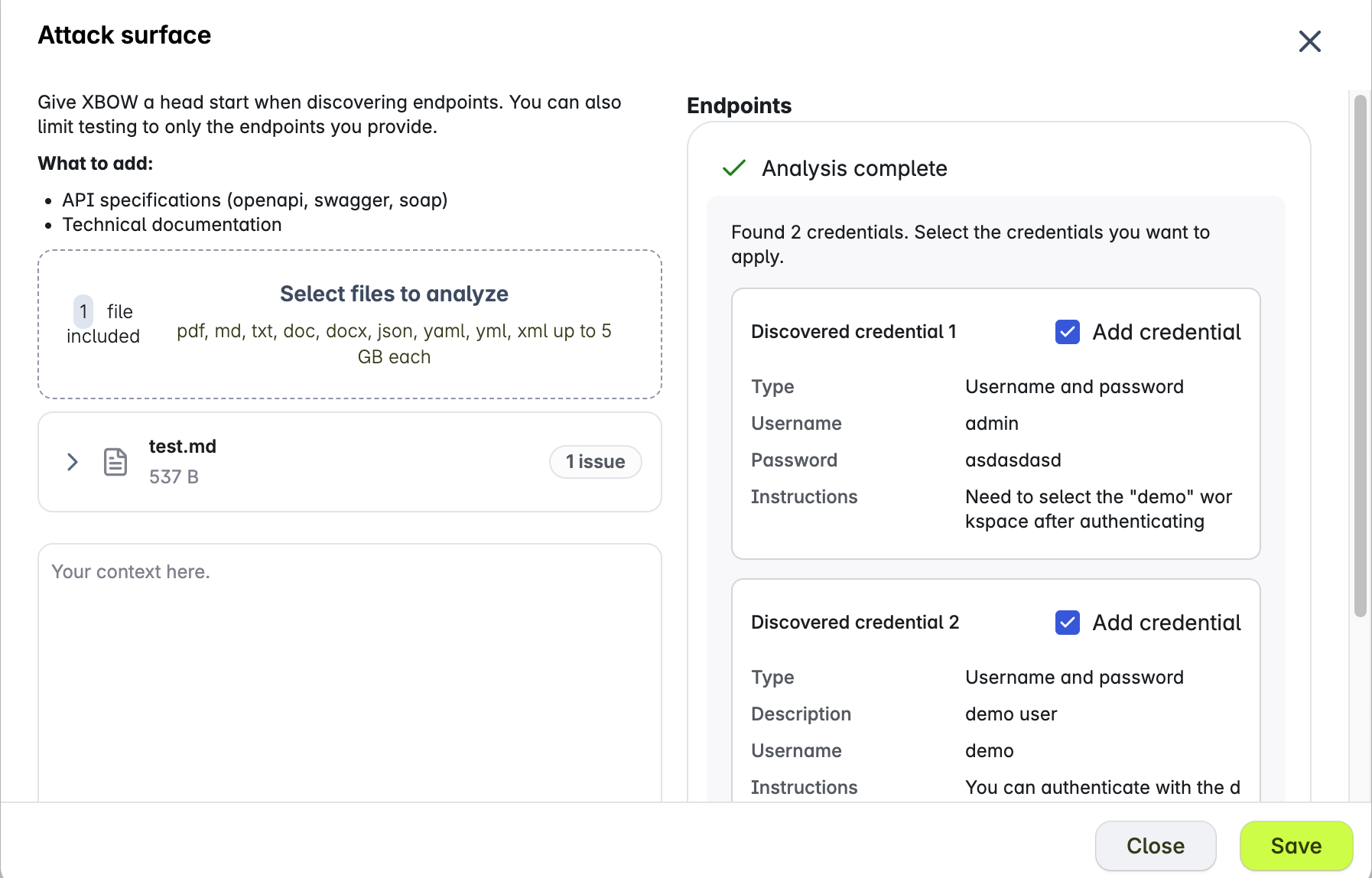
In the right column, review the “Found N credentials” message and each “Discovered credential” card. The cards show the values XBOW found, including passwords.
-
Select the Add credential checkbox on each credential you want to use. The files you uploaded stay in the file library. See Use the file library.
-
Click Save. XBOW adds each selected credential as a new credential set, or updates the existing set if it has the same username or email. XBOW also removes the credentials it extracted from the saved guidance.
-
Review the sets and complete the “Target configuration” page, including a role description for each set. If the new sets take the assessment from one set to two or more, XBOW shows the “Test access between accounts” dialog first.
A credential card can show a message instead of the checkbox:
- Not applicable: The credential is incomplete and XBOW cannot add it.
- Credential limit reached: The assessment already has the maximum number of credential sets.
XBOW also looks for authentication steps that apply to every account. They appear in the right column under “Common authentication guidance” and, after you save, in Shared authentication instructions. Delete any item you do not want to keep.
Troubleshoot authentication that fails for some accounts
If XBOW authenticates with some credential sets but not others, check the following:
- The Authentication instructions on the failing set describe how that account logs in.
- The shared instructions are true for every account. Move steps that apply to one account into that account’s set.
- The account’s username and password are correct. To correct them on a running assessment, see Edit credentials on a running assessment.