Explore your assets at scale
Anyone can view a table of all assets in their organization. For each asset, XBOW displays high-level information to help you understand its current state.
View and filter your assets
-
To view your assets table, navigate to your organization dashboard.
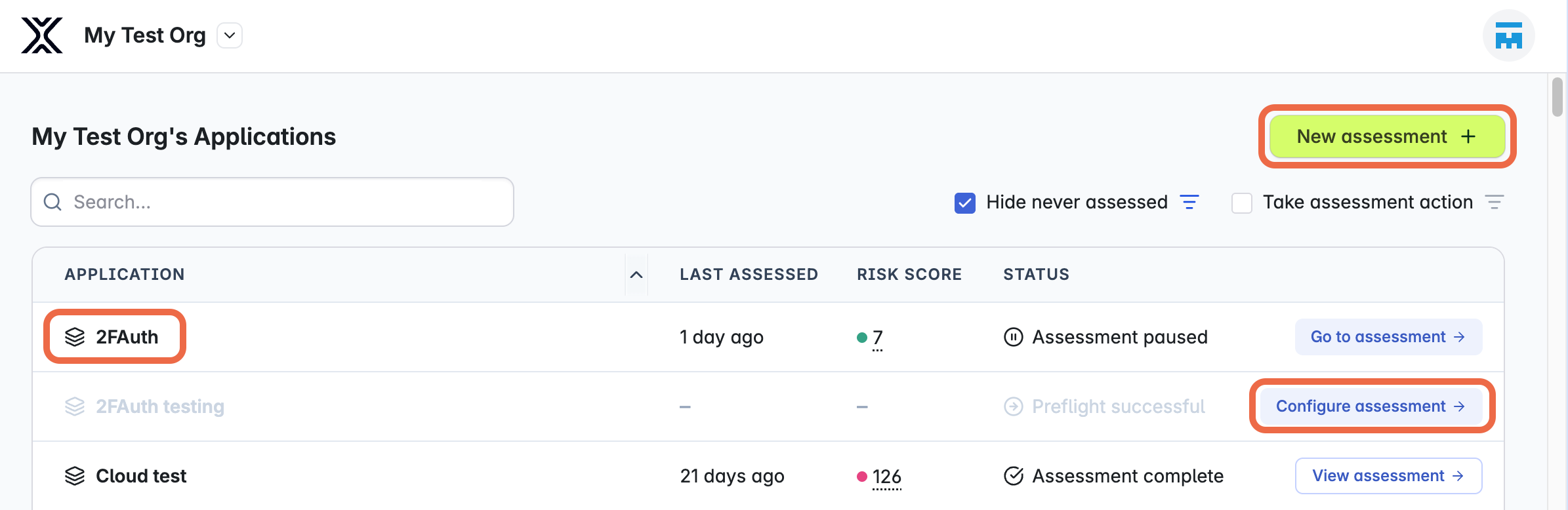
-
Optionally, to change which columns you can see, click the Columns button at the top right of the table, then update your selections.
-
Sort or filter the table to find specific assets:
- To sort based on a single column, click the column header. You can sort each column in ascending or descending order.
- To filter for specific criteria, click the filter bar at the top of the table, then build your filters using the dropdown menu.
-
Optionally, to share your updated view with other members of your organization, copy the page URL.
Act on individual assets
- For most assets, XBOW includes the recommended next step at the far right of the row. To take that step, click the text.
- If an asset has been assessed at least once, you can also click the vertical ellipses to learn more about the most recent assessment:
- To explore the assessment in the Console, click View assessment.
- To download an in-depth write-up of the assessment, click Download latest penetration report.